Getting started
What ONE Travel OS is, and how to find your way around.
On this page
What ONE Travel OS is#
ONE Travel OS runs a travel agency’s back office. Advisors keep their book of business in it: households, travelers, trips, and the per-supplier bookings that make up each trip. The platform computes expected commission from supplier terms, reconciles what arrives, chases what doesn’t, pays advisors their splits, and gives each household a portal for viewing trips and paying planning-fee invoices.
Each agency’s data is its own. Within an agency there are two roles:
- Advisors work their own book: their households, those households’ trips and bookings, their own commissions and payout statements.
- Agency admins see the whole agency and hold the agency-wide surfaces: deposits and reconciliation, payout runs, advisor management, compliance, data erasure, and settings.
Anything marked admin-only in these docs is absent for a non-admin advisor, not grayed out.
An account can hold both roles. The sidebar then offers a Working as switch, and the role you pick decides what the whole app shows and allows. See Switching roles.
Signing in#
Advisors sign in at the agency’s ONE Travel OS address with email and password. Agency policy may require admins to set up two-factor authentication before they can go anywhere else. For recovery codes and lost-phone steps, see Sign-in and security.
Advisors and agencies can’t sign themselves up. If you are the first administrator of a brand-new agency and have been emailed a link, start at Your agency’s first day.
The agency’s households never sign in here. They use the client portal with an access code their advisor issues.
Finding your way around#
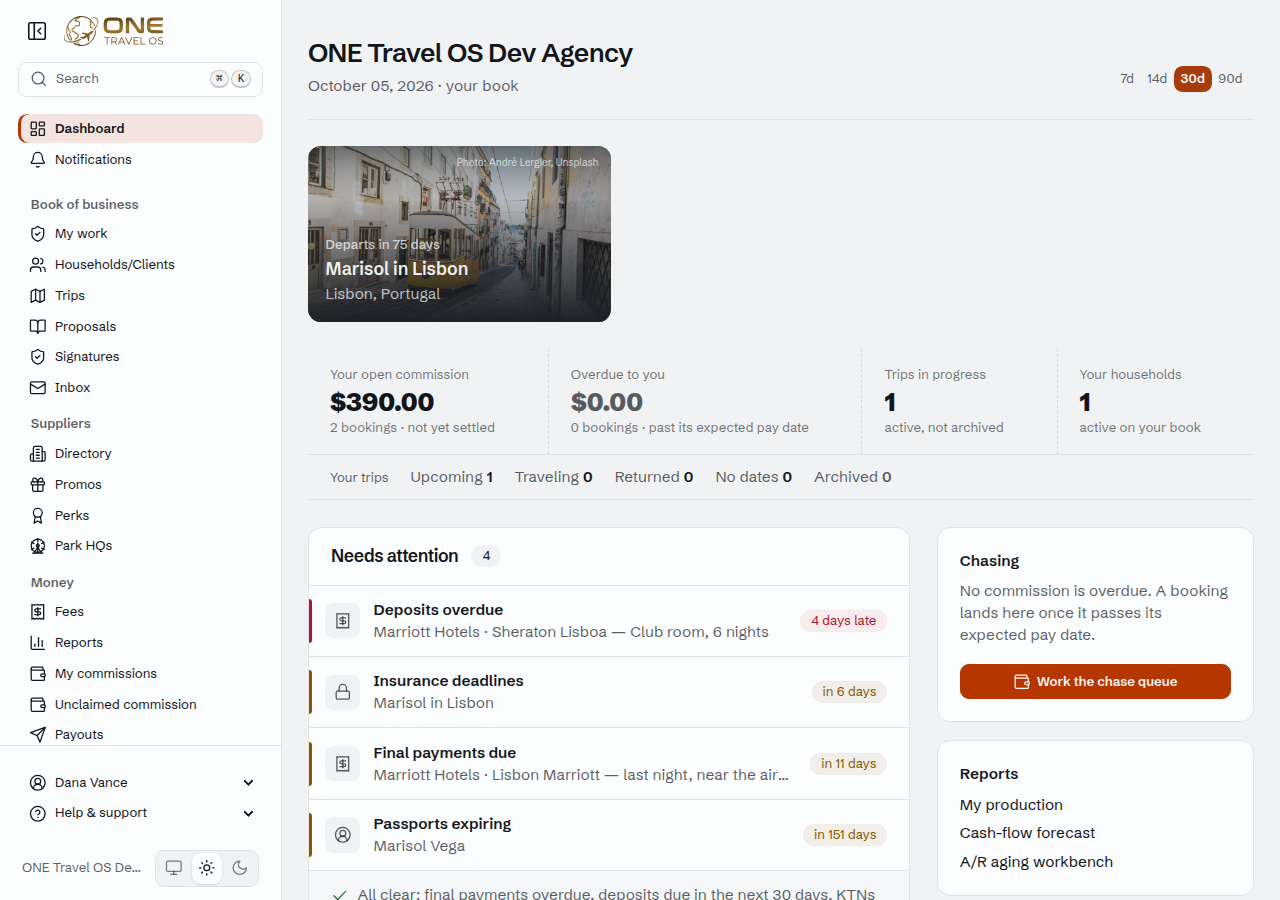
The left sidebar follows the order of your day:
- Dashboard, on its own at the top: where you land, not a place work is filed.
- The book of business: My work, Households, Trips, Inbox.
- Suppliers: Directory and Promos, set apart because they hold shared agency knowledge rather than anyone’s own book.
- Money: Fees, Reports, then Deposits and Commission claims (admins) or My commissions (advisors), Unclaimed commission, and Payouts. A number beside one of these rows is how many things are waiting there: overdue fees (only your own households’ unless you’re an admin), deposits with money not yet applied, claims waiting on a decision, unclaimed lines open to a claim, and payout runs still in draft. With nothing waiting, the row shows no number.
- Agency (admins only): Settings, Advisors, Compliance, Agreements, Viewed as, Mailbox access, and Data requests.
- Working as, at the top of the account block, only if your account holds more than one role. See Switching roles.
- The account block at the bottom: two rows, both of which unfold.
- Your own name, or your email address until Your details has a legal name on it. Hovering the row shows the address you signed in with. It unfolds to Your details, Your compliance (independent contractors only; see Your compliance), Mailboxes, Signature, Templates, Security, and Sign out, and opens by itself when you are on one of those pages.
- Help & support, which unfolds to the Knowledgebase (how you got here) and Support. Support has two desks: questions for your agency, and problems with the platform itself. See Getting help.
Only one of these unfolds at a time. Working as, your name, and Help & support close each other, so opening the third does not push the first two down the panel.
- Your agency’s name, on the last row beside the light/dark buttons. Point at it (no click needed) and Your host agency opens above it with the agency’s mailing address, booking phone and booking email, the details a supplier’s registration form asks for. The panel stays while your pointer is on it, so you can copy from it; Esc or a click elsewhere closes it. On a phone or tablet, tap the name. The panel is titled Your agency where the agency is a travel agency rather than a host. Admins fill the details in on agency settings; until one is on file the name is plain text.
⌘K (Ctrl+K on Windows and Linux) opens a search box over your whole book of business that also jumps to any screen and starts the common forms. See Search and jump to anything.
You land on the Dashboard, which is two screens. As an advisor you get the daily worklist: your own open items first, then deposits and final payments coming due, insurance windows closing, passports and travel credits about to expire. As an agency admin you get the agency’s back office: what the agency is owed, how old it is, and the queues you clear. The role you are working in decides which. See The dashboard.
My work is the full version of that first panel: the things somebody wrote down, beside the dates the app works out for itself.
Collapsing the sidebar
On a computer, the button left of the logo collapses the sidebar to a narrow strip of icons and gives the page the room. Point at the strip and the full menu opens over the page; move away and it folds back. Tabbing into it from the keyboard opens it too. A dot on an icon means that row has something waiting.
To bring the full sidebar back, click the same button. Your browser remembers the choice, so it stays collapsed on your next visit. On a phone or tablet the sidebar is always the menu behind the button in the top bar.
How do I get back to where I was?#
The row of links above a page’s title is its breadcrumbs. They show the way you came: each time you click through to something on a page, the page you left becomes a breadcrumb. Open Deposits, then a deposit, then a booking on it, then that booking’s supplier, and the supplier page’s breadcrumbs read Deposits, the deposit, then the booking.
Click a breadcrumb to go back to that page. The breadcrumbs after it drop off. Links on a page go back up the same way: open a page that is already in your breadcrumbs, or open a booking’s trip from the booking, and the breadcrumbs get shorter instead of longer.
The sidebar starts over, and so do search, the bell and the logo. A page you open from one of them, or from the dashboard or Notifications, shows its usual breadcrumbs: a booking shows Trips, then its household, then its trip. If the first breadcrumb is a record, it brings those along too, so you can always see which trip a booking belongs to.
Picking a different supplier in the supplier directory doesn’t add a breadcrumb, because you’re still in the directory. A tab, a page of results or a filter doesn’t add one either.
When the trail gets long, the breadcrumbs show where it started and the last two pages, with … in between. Click … to see the rest. On a phone you see one breadcrumb, the page you came from, with an arrow in front of it.
Forms keep your breadcrumbs too. On a booking, deposit, supplier, planning fee or travel credit form, Cancel and saving take you back to the page you opened the form from: Amend on a booking takes you back to the booking, and a travel credit started from a booking takes you back to the booking. Other forms land where they always did, with your breadcrumbs kept. A new invoice started from a trip or a household opens on the invoice, with that trip or household in its breadcrumbs.
If you’ve installed ONE Travel OS as an app, it has its own Back and Forward buttons too. See Using ONE Travel OS as an app.